Quick answer
Export your full organisation data from Timetastic as a spreadsheet, then upload it in Book Time Off. It brings across your departments, people and this year’s approved leave in one go.
Find it under
Export your data from Timetastic
In Timetastic, go to Organisation, scroll to the bottom, choose Export organisation data and download the file. It is an Excel workbook (.xlsx).
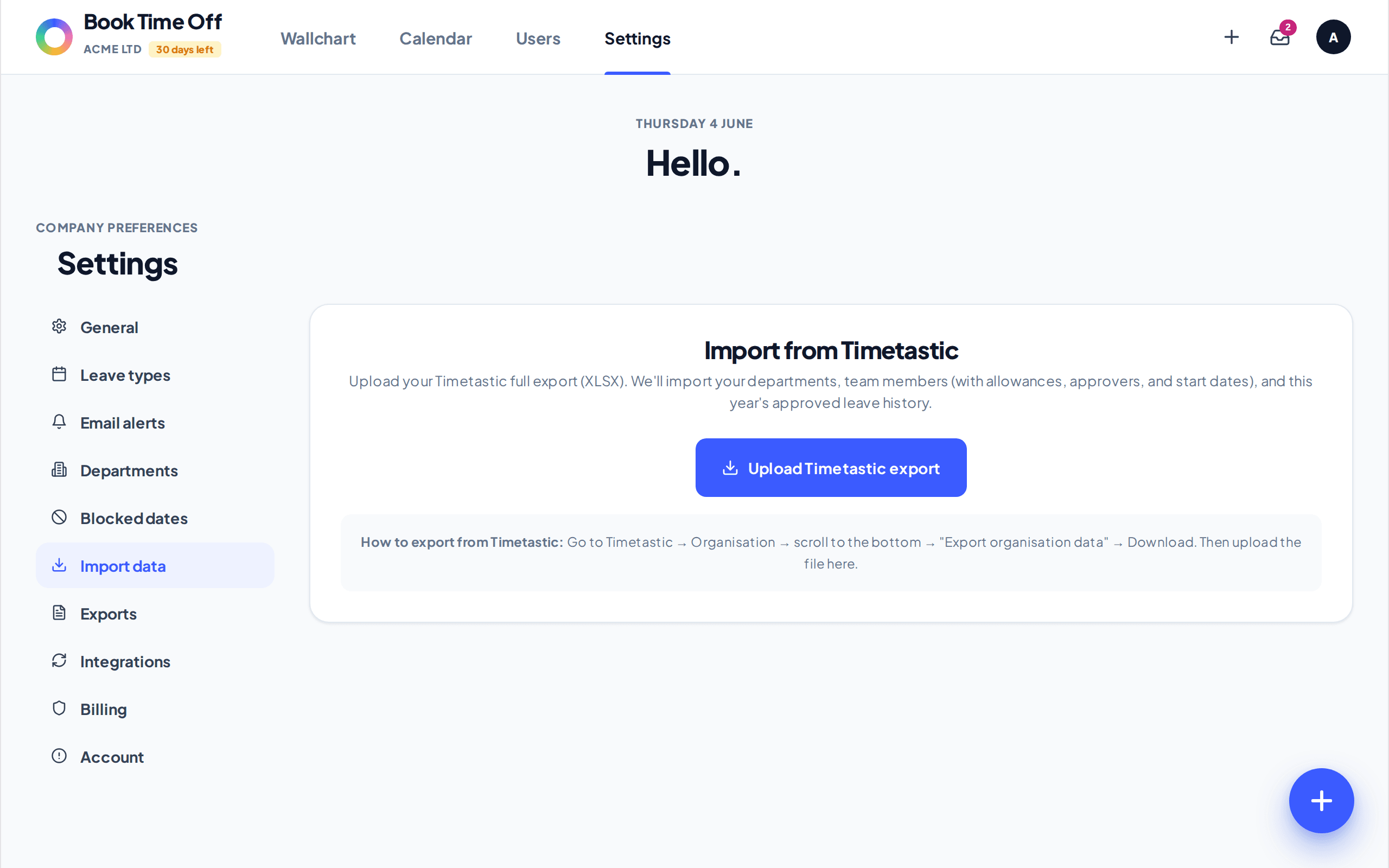
Open the importer in Book Time Off
Go to . Under Import from Timetastic, choose Upload Timetastic export and select the file you downloaded.
Review and import
Book Time Off shows a preview with counts for departments, people and leave records. People who already exist are matched by email and marked to update. Confirm with Import everything.
It is an upload, not a connection
The importer reads the Timetastic spreadsheet you upload. It brings your departments (with manager and capacity limit), people, and this year’s approved leave, not just a list of names.
Coming from a different system?
There is no dedicated importer for BreatheHR or other tools yet. For those, add people manually with Add someone (about 30 minutes for 25 people). Wider imports are on the roadmap.