Quick answer
Open People and choose Add someone for each person. You set their details and allowance; ticking the invite box emails them a link to set up their own password.
Find it under
Open the People page
Tap your avatar and choose People (or use the Manage people link on the Team page). This lists everyone on your team with their allowance, days used and days left.
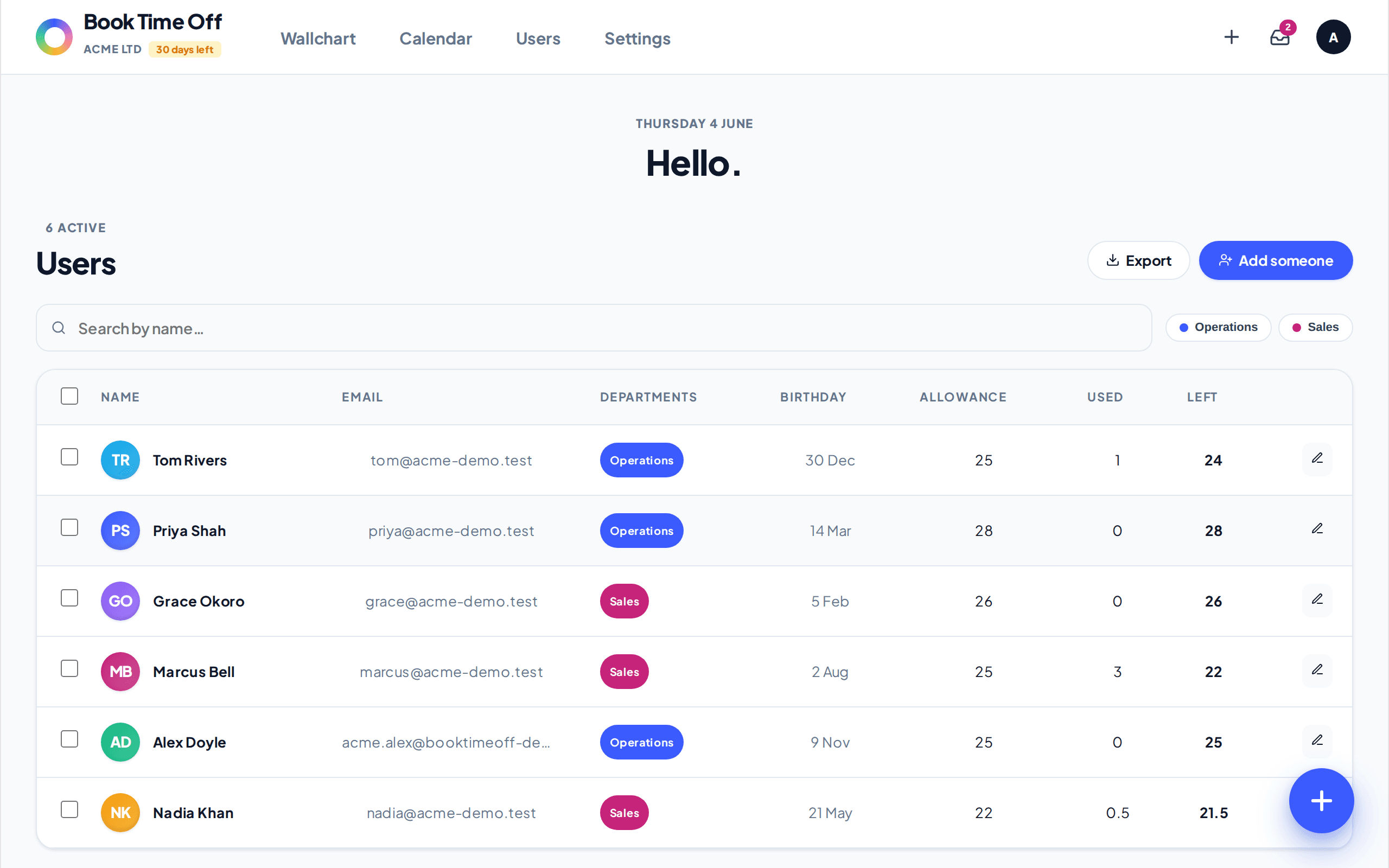
Choose Add someone
Click Add someone at the top right. Enter their Full name and Email, pick any Departments, and set their Annual allowance.
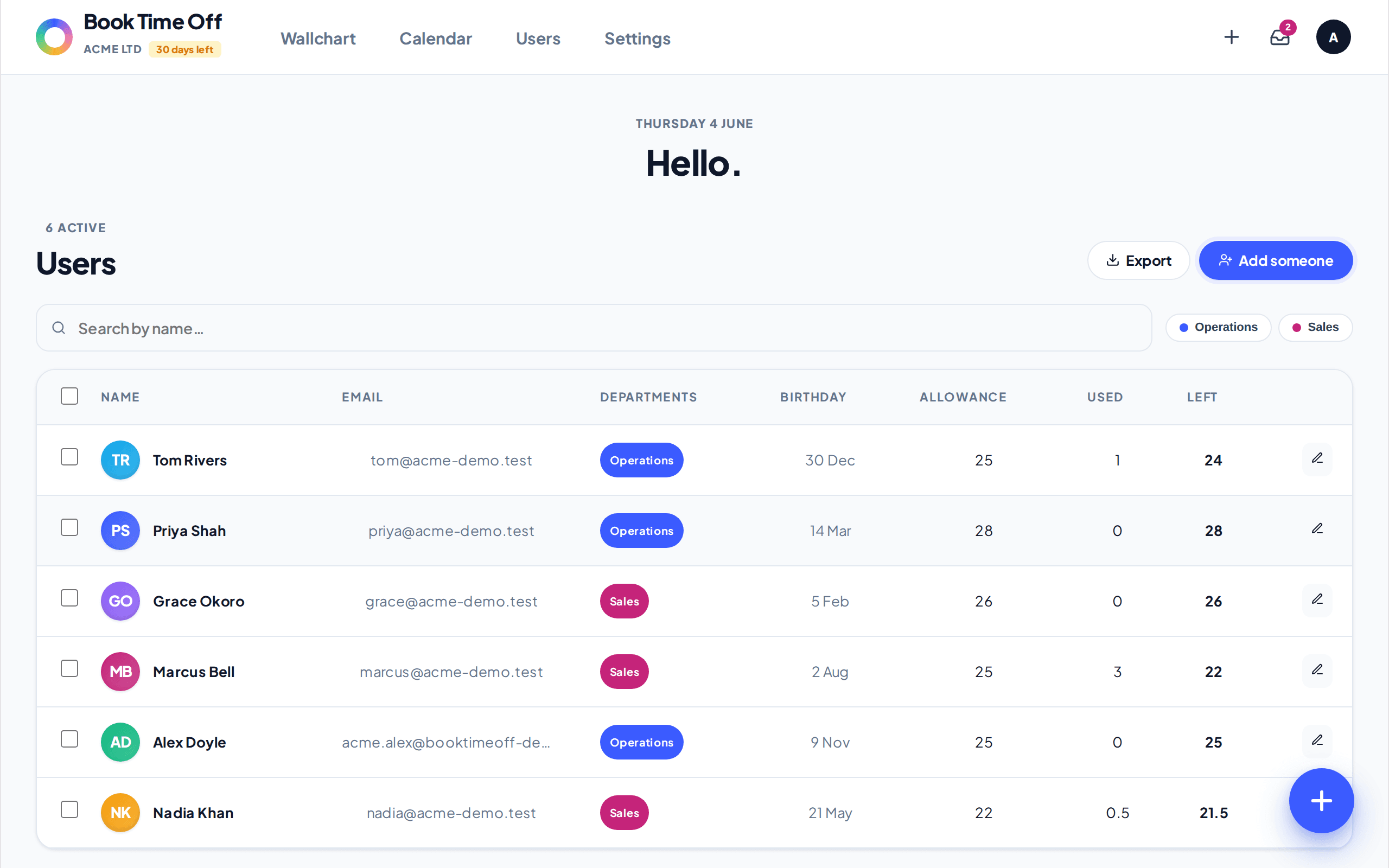
Invite them, or manage their leave yourself
Leave Email them an invite to set up their account ticked to send a login link, or untick it to manage their leave on their behalf. You can send or resend an invite later from the same screen. Click Save.
Moving a whole team across?
Adding people one by one takes about 30 minutes for 25 people. If you are coming from Timetastic, the importer is faster. See Import from Timetastic.