Quick answer
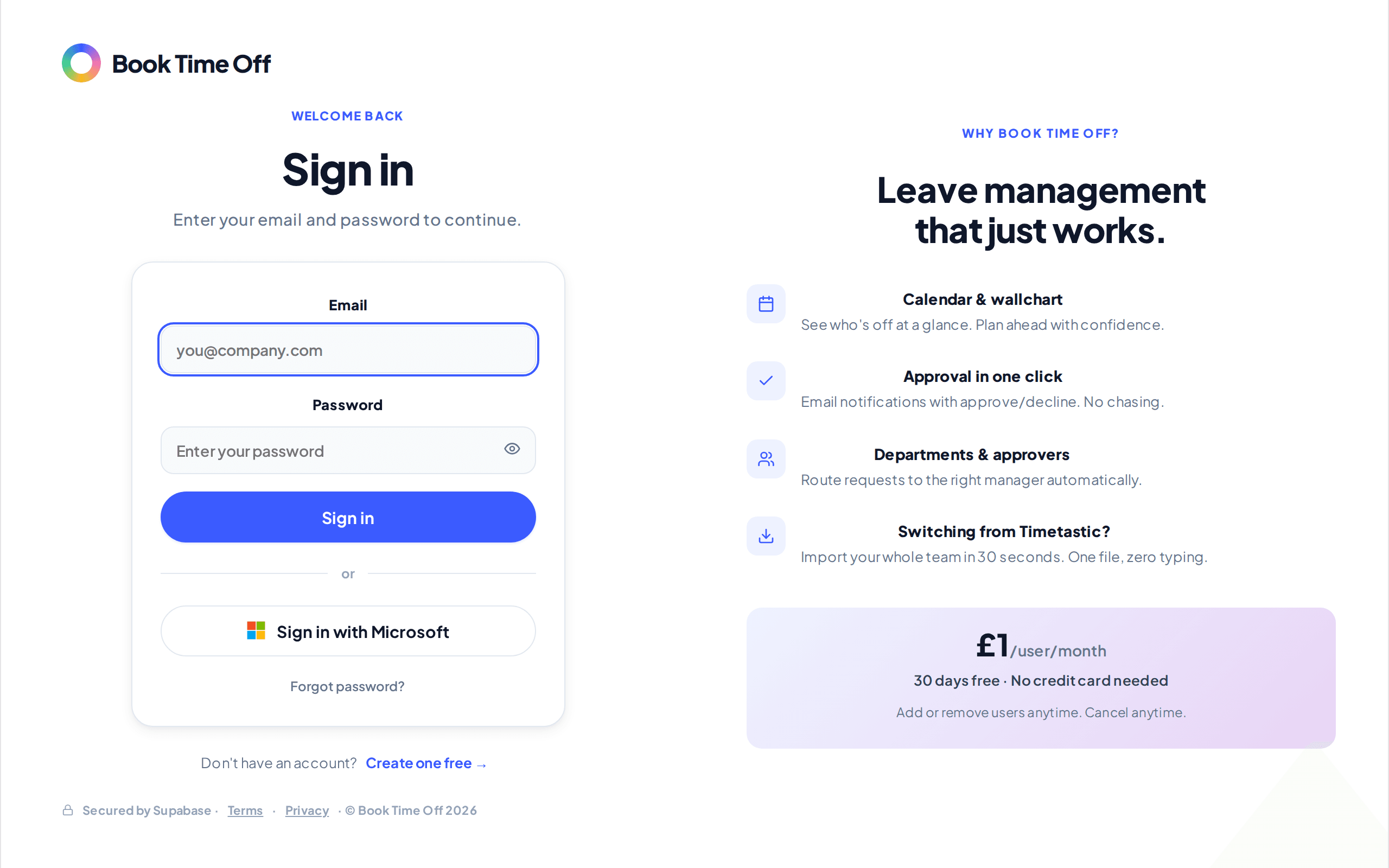
On the sign-in screen, choose Sign in with Microsoft and approve access. This works for anyone who already has a Book Time Off account.
Find it under
Choose Sign in with Microsoft
On the sign-in screen, choose Sign in with Microsoft.
Approve access
Sign in to Microsoft and approve access once. You are returned to Book Time Off and signed in.
You need an account first
Microsoft sign-in only works if you already have a Book Time Off account, set up at signup or from an invite. If it cannot find a match, sign in with your email and password, or ask your admin to invite you.