When someone requests leave, the approver gets an email with Approve and Decline links, so a decision takes one click without signing in. You can also review everything in the Inbox.
Find it under
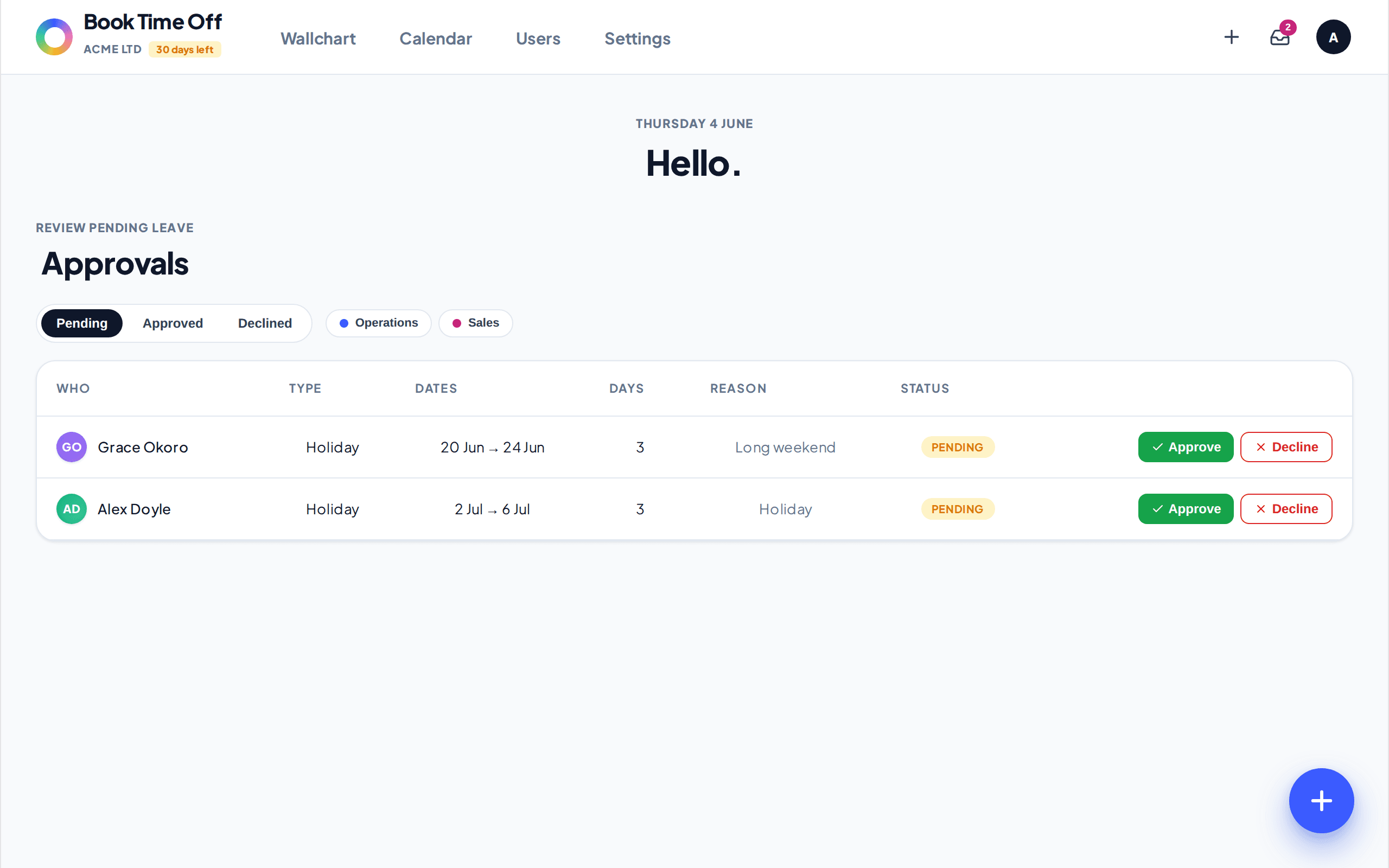
It goes to the person’s assigned approver. If their approver is set to All admins, every admin is notified and any one of them can decide. Set a specific approver on the person’s record under People.
If your company has connected Slack, the approver also gets a Slack DM with the same one-click Approve and Decline buttons, so a decision is one click wherever you happen to be. If your company uses Google Chat, people can book leave there too, and you get the same one-click Approve or Decline decision by email. See Use Book Time Off in Slack and Use Book Time Off in Google Chat.